
Your Client Account
A guide to your Client Account, Ordering and Communications
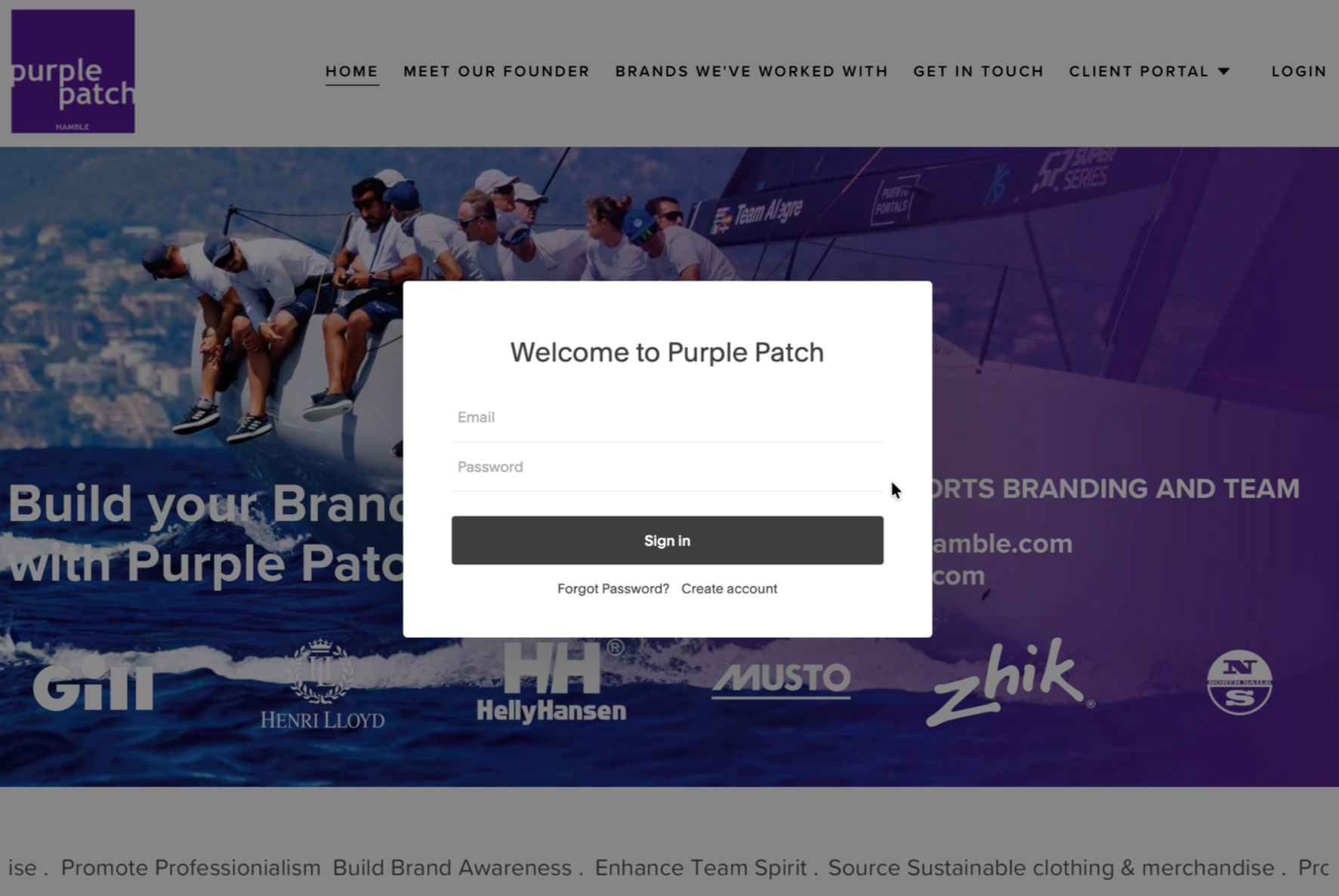
1. Logging In and Account Creation
Please go to www.purplepatchhamble.com
Accessing the Accounts: Click Login in the site navigation bar.
Existing Accounts: Enter the credentials provided by the administrator in the email and password fields.
New Accounts: Click Create Account below the sign-in button if you haven't received credentials.
2. Administering Your Account
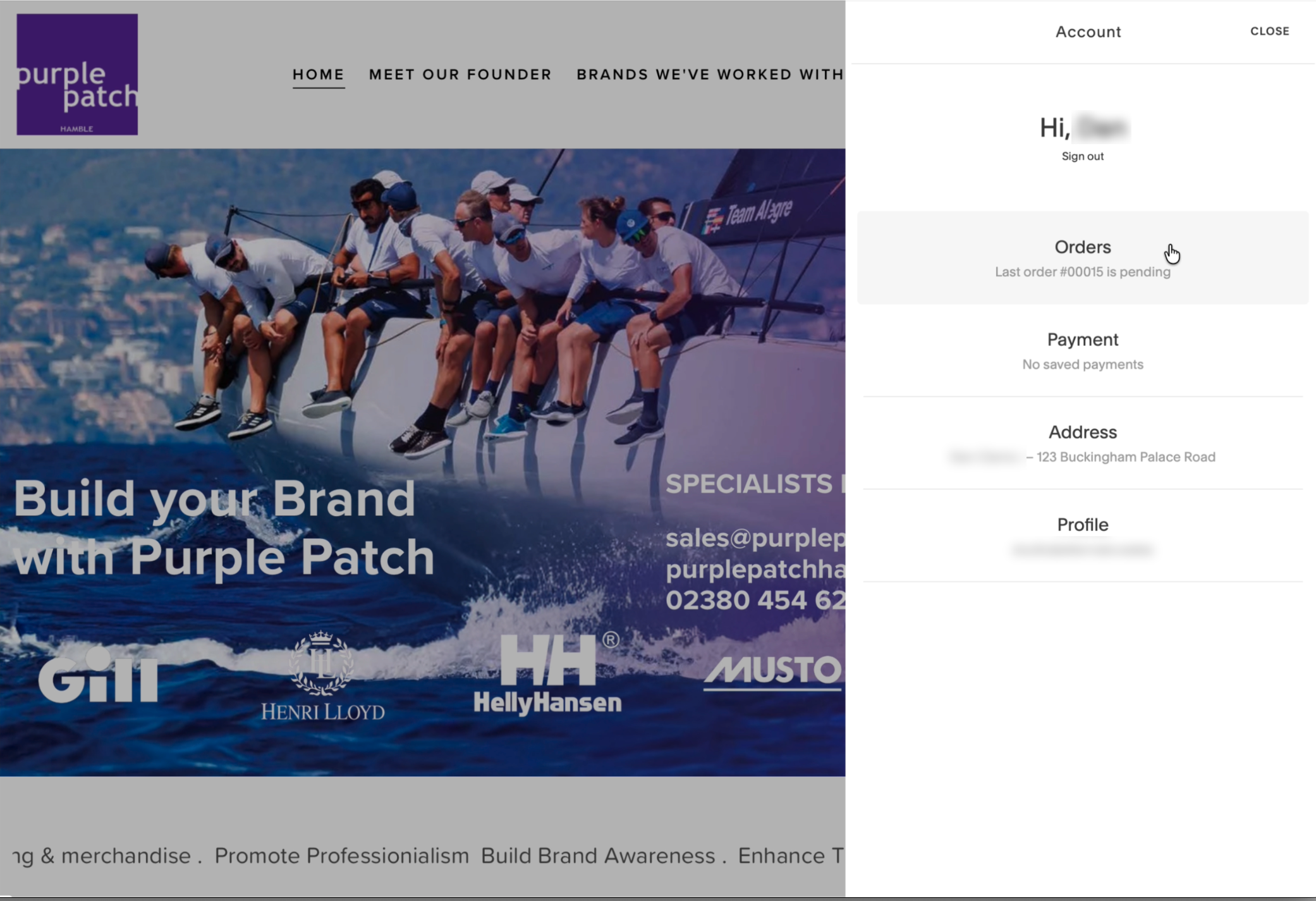
Profile: Update your name, email, or password here.
Addresses: Store multiple delivery addresses to speed up the checkout process later.
Order History: View all previous orders and their current status under the Orders tab.
3. Ordering from the Portal
Gaining Access: First, click on Client Portal in the main navigation, and then enter the Password to gain access to your store. N.B. the password should be lower case and is ‘premier(name of your marina)’ e.g. premierswanwick
Selecting Items: Browse the portal and select your required items, ensuring you choose the correct size, colour, and number of items.
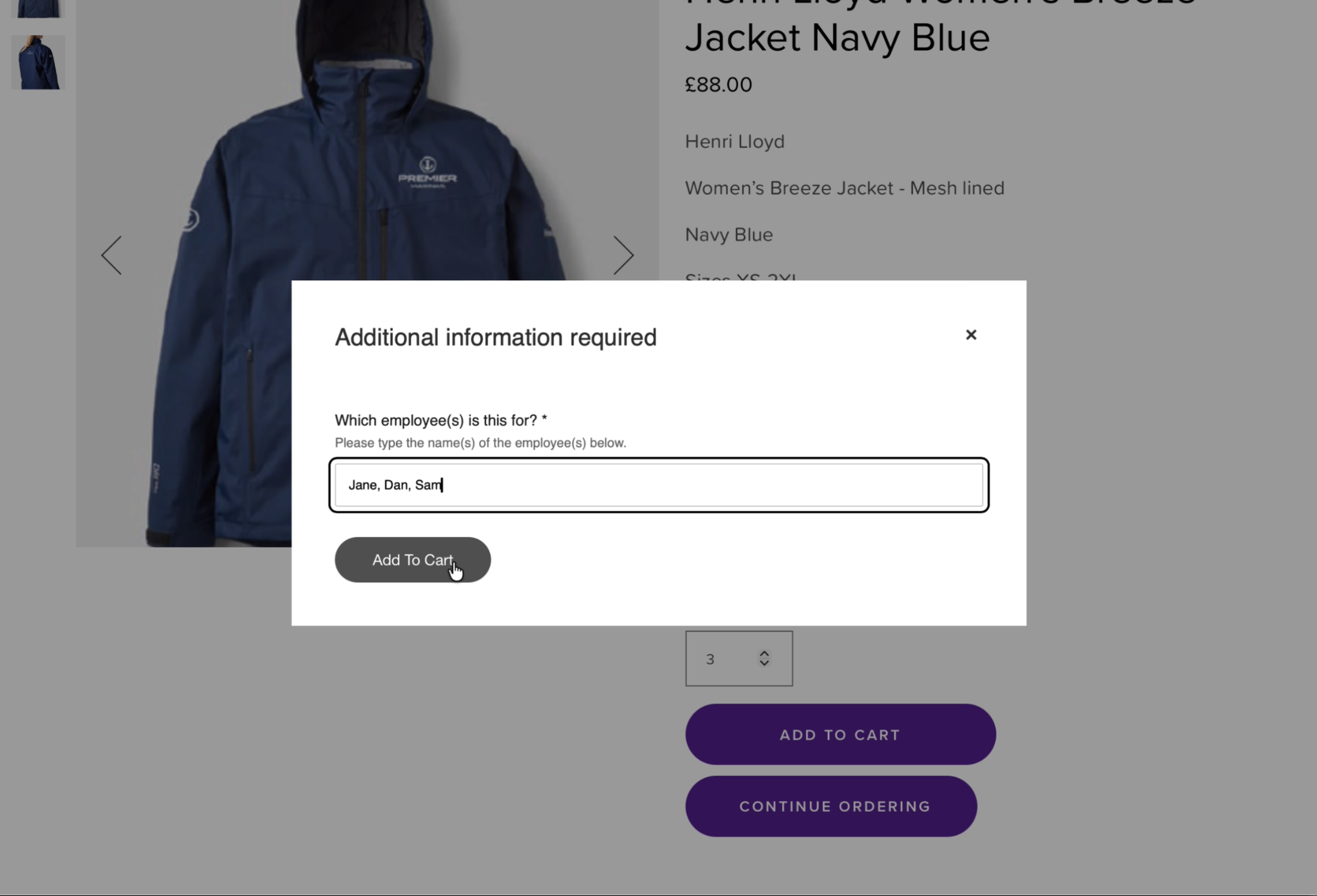
Employee Assignment: Enter the name(s) of the employees who will receive each specific item—this is a required step for identification.
Cart: Click Add to Cart once details are entered. You can access your current selections via the cart icon in the bottom right corner or select the button below to "continue ordering".
4. Completing Your Order
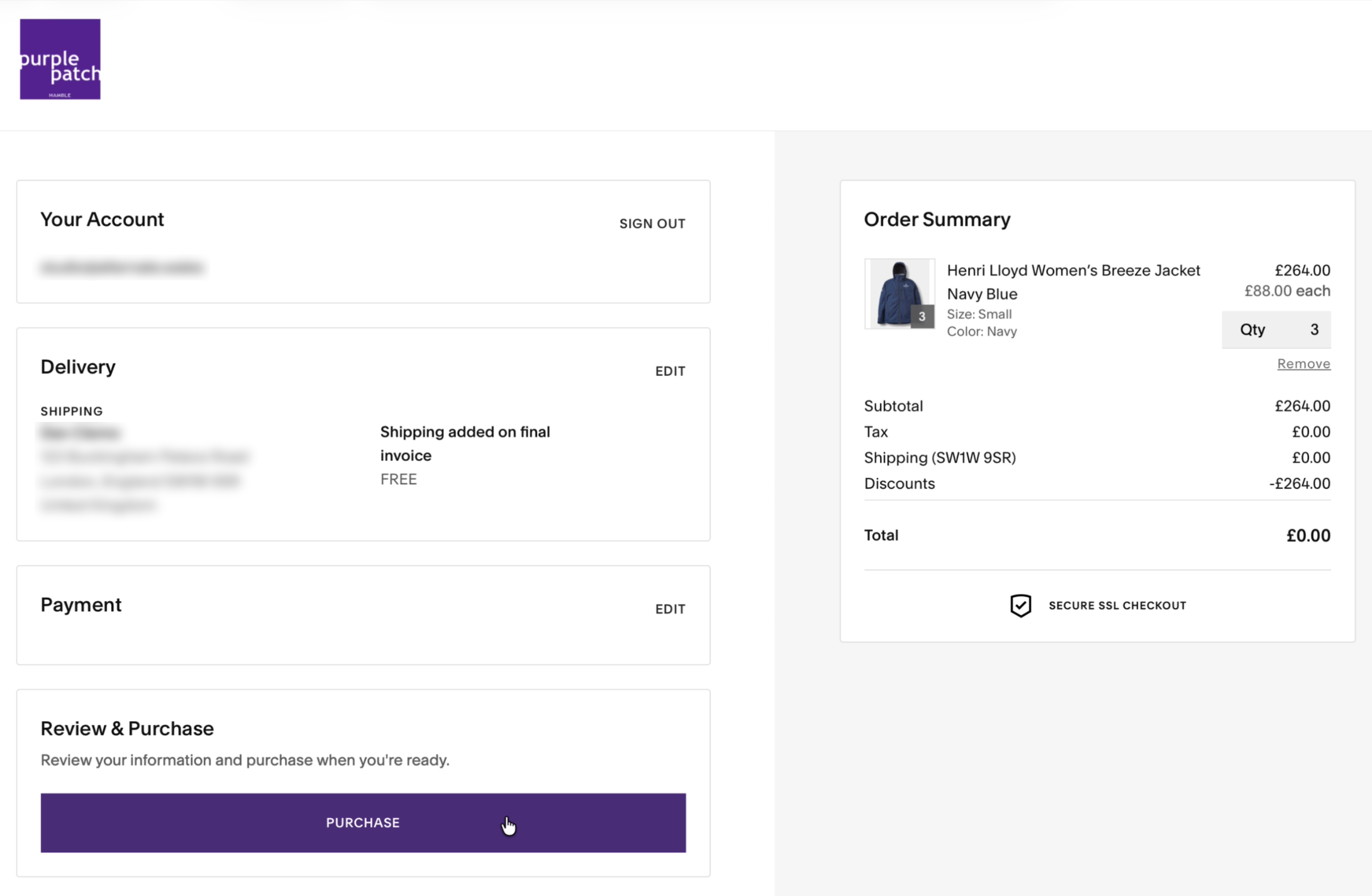
Checkout: From the cart, click Checkout.
Delivery Address: Select your Marina address from the drop-down menu.
Payment: The system is set up with an automatic full discount (£0.00 today); an invoice will be sent to you separately from Head Office. Click Continue through the payment section.
Finalising: Click Purchase to submit the order. You will see a confirmation screen with your order number.
5. Confirmation and Tracking Emails
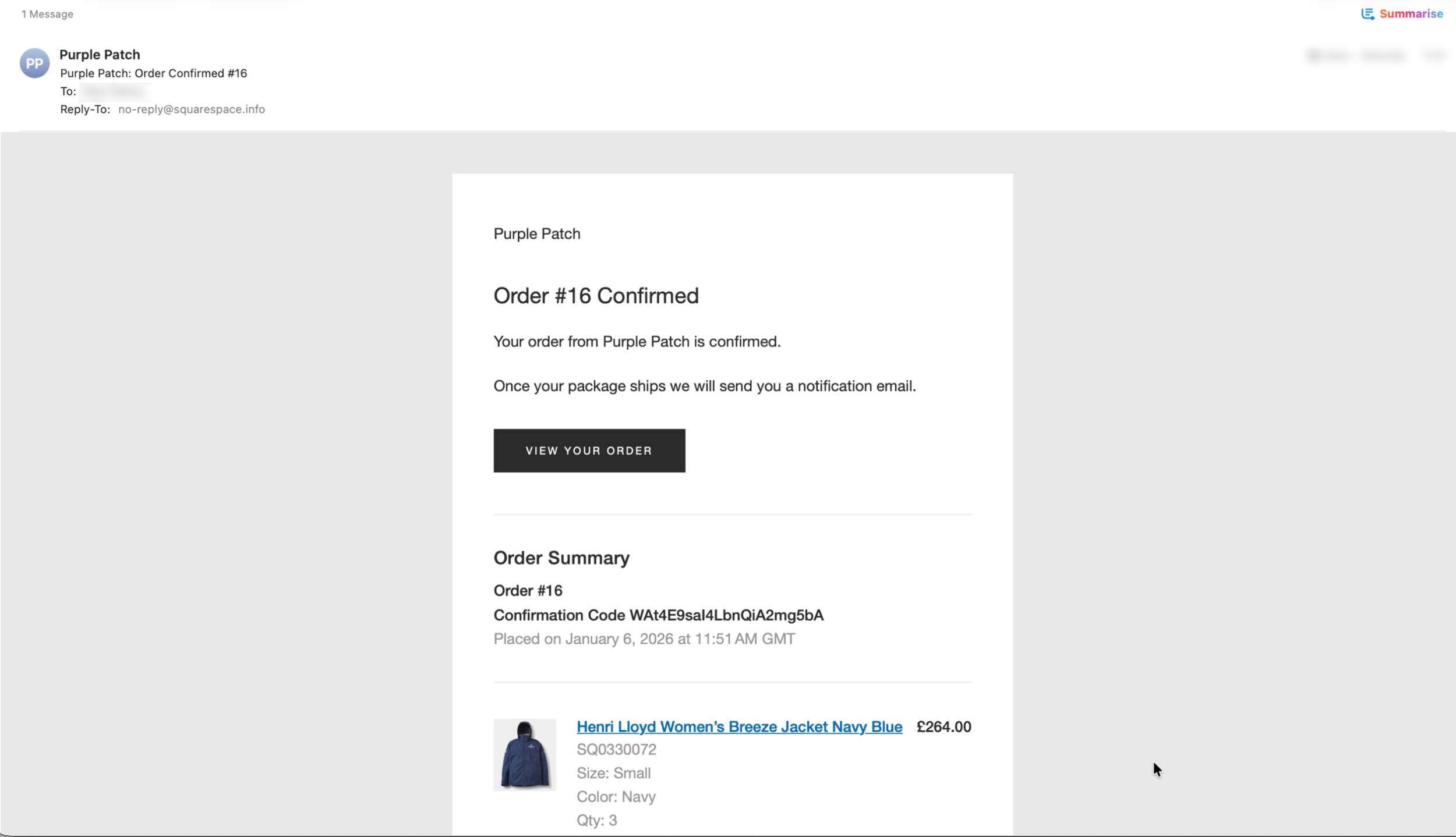
Order Confirmation: Immediately after purchasing, you will receive an email summarising your order, including assigned employee names and the shipping address.
Fulfilment Update: You will receive a second email once the order is shipped, containing tracking details.
Need further support?
Please leave us a message, and we’ll get back to you as soon as we can.